
Foundry VTT
Available now
Supply physical dice to supported Foundry rolls and share results in chat.
Setup guide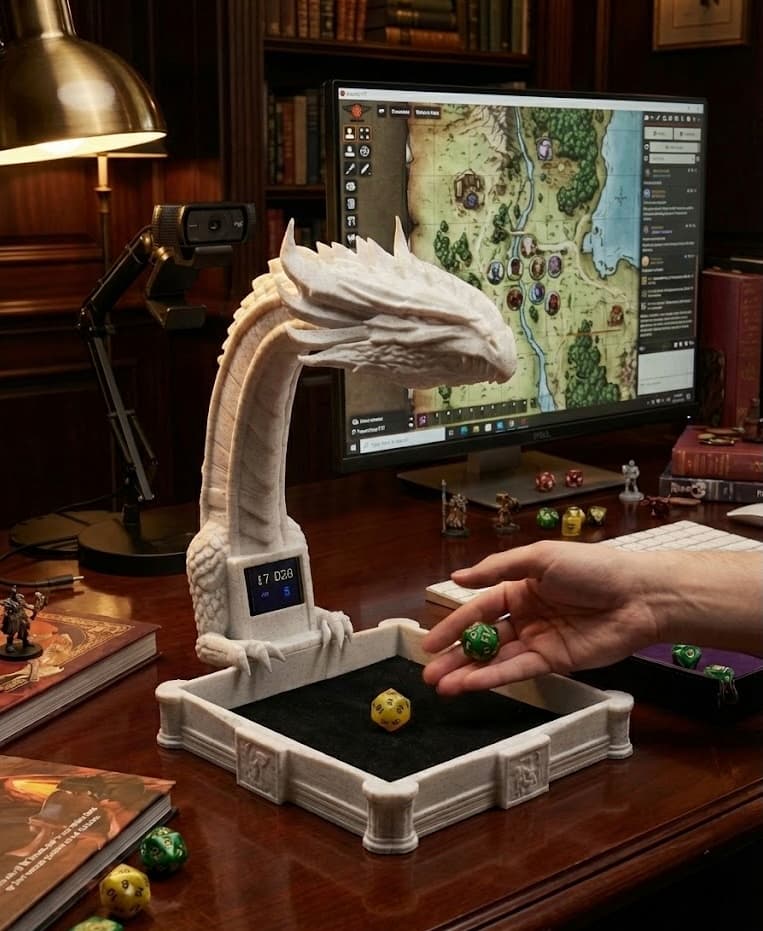
Your dice rolled on your online table
RollSight is a free automatic dice reader that uses your camera to read physical dice and send rolls to Foundry VTT, Roll20, and Discord.
Free to use; subscriptions only for premium extras
Foundry VTT, Roll20, and Discord work today. Roll20 uses a browser add-on. Optional replay features depend on your plan and setup.
You supply the camera. Phone, USB webcam, a desk document camera such as the IPEVO V4K, or our free 3D-print Dragon Rig files all work.
Keep your favorite dice. No special dice to buy. The more people play, the easier reads get for everyone.
Available now


Three steps: aim a camera, roll, and let your online group see the same numbers you do at the desk. The app is free to use; create a free account when you first open it.
Use real dice online for D&D, Pathfinder, and other tabletop RPGs. RollSight provides camera-based dice recognition on Mac and Windows, turning a webcam or connected phone camera into a dice scanner for your virtual tabletop.
Step 1
Phone, webcam, document camera (e.g. IPEVO V4K), or DIY Dragon Rig. You bring the camera; many options work. No hardware purchase from us required.
Step 2
The app watches the camera feed and reads each roll as it happens. Check the result and correct any misreads before sending.
Step 3
RollSight sends each roll to Foundry VTT, Roll20, or Discord today. More online tabletop apps are on the way.
RollSight is software only - you pick the camera. Most people start with a phone on a stand or a webcam they already own: aim straight down, add a little light, and you are rolling in minutes. When you want a sharper overhead picture, a document camera like the IPEVO V4K or a DIY Dragon Rig are great next steps.
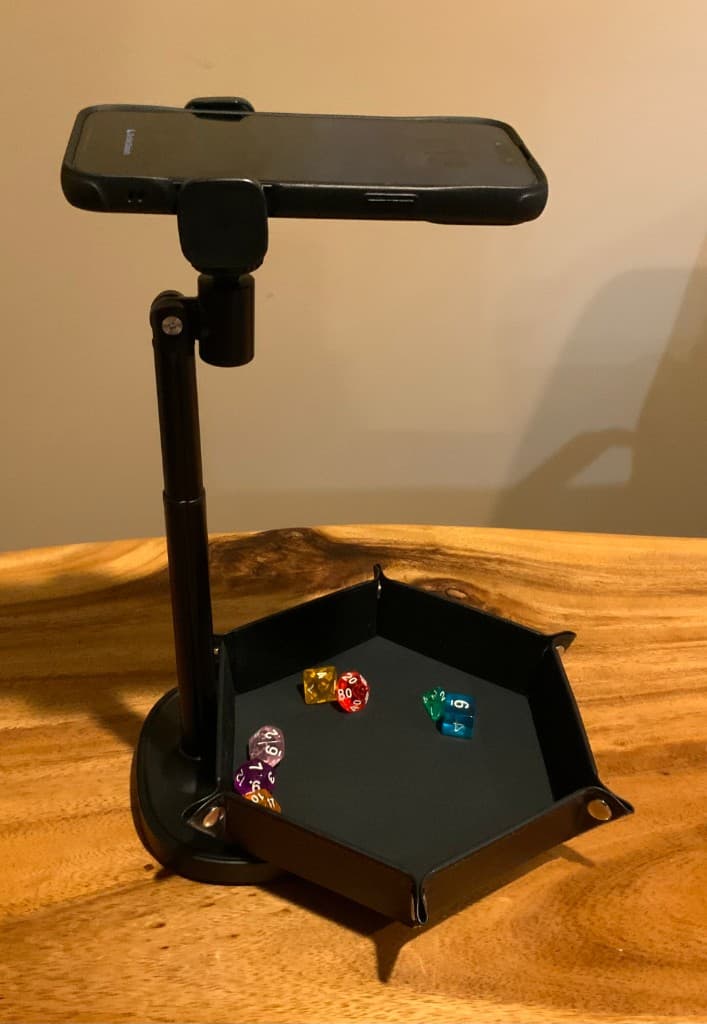
Clamp or stand your phone over the tray. Works with iPhone on Mac and Android on Mac or Windows. A simple desk mount plus our walkthrough is enough for many tables.
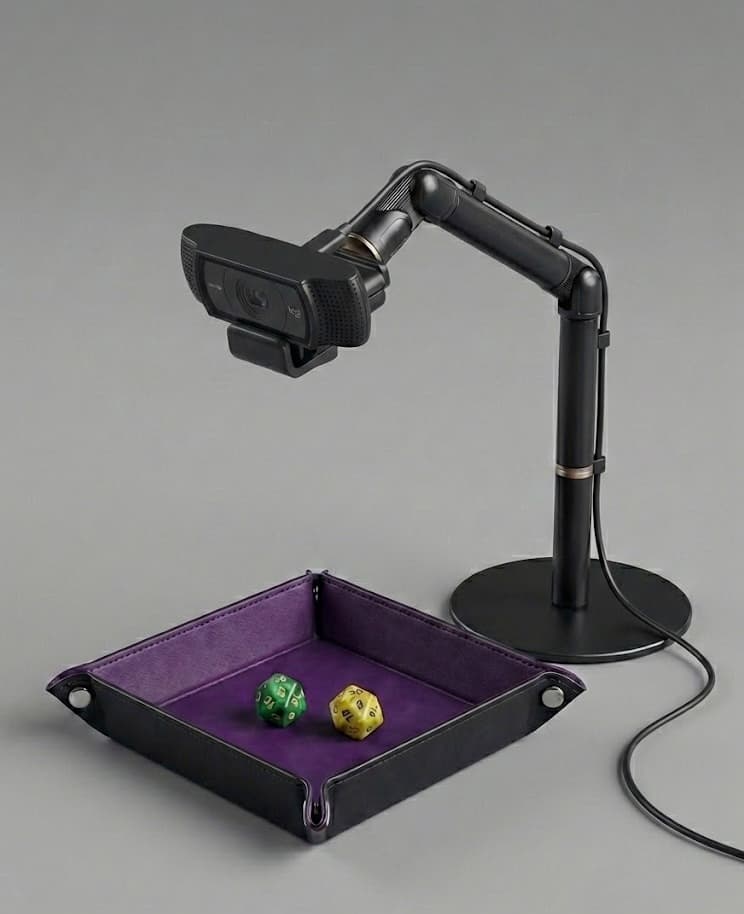
Many players already own a 1080p webcam. Add a stable mount and aim it straight down at the tray - our webcam guide lists solid models and placement tips.
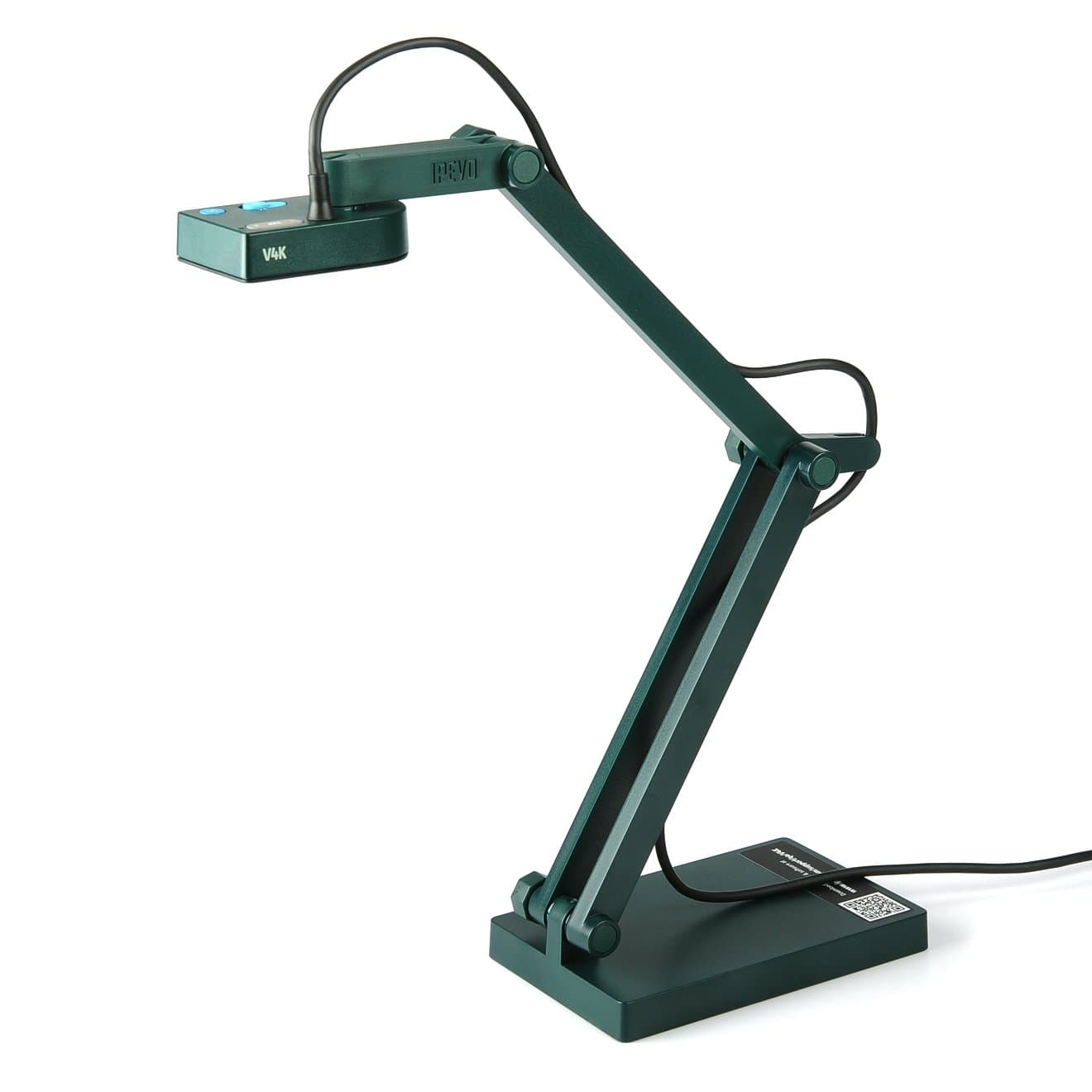
Plug-in USB document camera with a crisp top-down view, solid in dim rooms, and simple plug-and-play setup on Mac or Windows. Great when you want the clearest overhead shot without a DIY build.
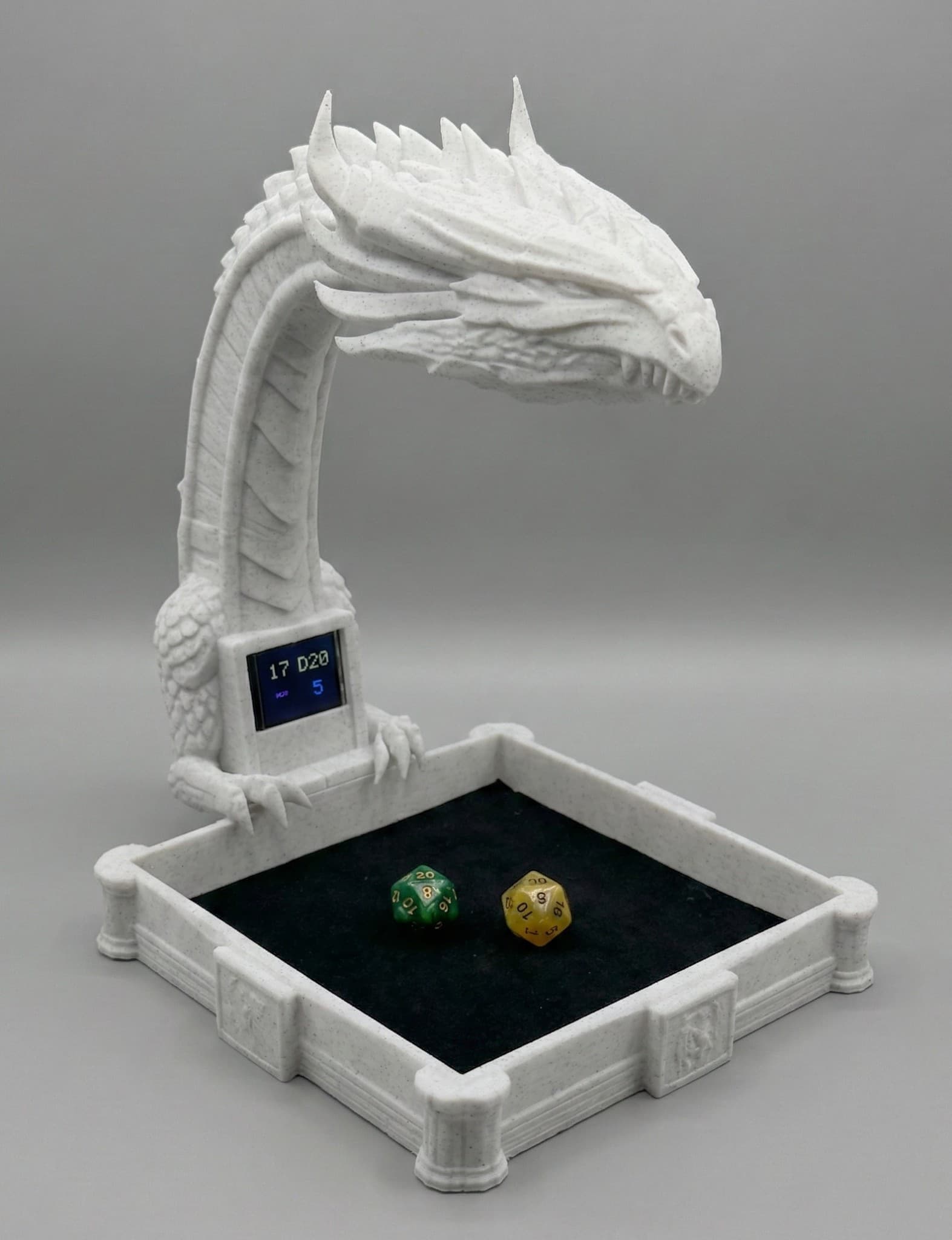
Free files on Printables: print the dragon body, add a small USB camera and optional screen from our parts list, and you get a tray plus a built-in spot for results. Use any dice you like.
iPhone with Mac, or Android with Mac or Windows - where most new players begin.
High-resolution USB document camera; our top tested pick
3D-print from the free files on Printables
Logitech C920, C922x, Razer Kiyo Pro, Elgato Facecam, Anker PowerConf C200
Tiny plug-in cameras can work if the tray stays bright and steady.
Below 720p or poor low-light performance
Usually fixed angle and too far from the tray
Dim or uneven light makes reads unreliable; add a lamp or brighten the room for best results.
Setup guides for webcam, phone mount, and Dragon Rig DIY.
Pick any camera setup that fits your desk. This list grows as we test more gear and connect more games.
Tested & recommended
Desk camera we test most often. Sharp overhead view of the tray.
Free files on Printables
Print the free model, then buy the small camera and screen from our parts list.
iPhones (Mac)
Tested
iPhone as the overhead camera while RollSight runs on your Mac.
Android phones
Mac and Windows
Requires software that exposes the phone as a webcam on Mac or Windows.
USB Webcams
Likely to work well
Models like Logitech C920, Razer Kiyo Pro, and Elgato Facecam. Full list under Setups.
Roll20Live
Browser add-on with dice tray controls, replay links, and selected D&D 2024 sheet requests.
Foundry VTTLive
Chat, 3D dice, roll requests, and optional RollSight Replay in Foundry.
DiscordLive
Post rolls into text channels. Follow the Discord guide to hook up your server.
More cameras
More phones and webcams as we verify them in real games
Phone-first mode
Run from a phone without a desktop app (planned)
Owlbear Rodeo
In development — not available
Public physical-roll cards and RollSight requests in a native Owlbear extension are in development.
Fantasy Grounds
In development — not available
A native Fantasy Grounds extension for physical-roll results is in development.
TaleSpire
In development — not available
A TaleSpire Symbiote for physical-roll results is in development.
Reading your dice and sending rolls to your game stays on the free plan. When something is a Champion or Party extra, we call that out. Honest notes on which games we support today and what is still on the way.
Use the sets you already own. Correct misreads to save examples of your dice; unusual faces may need several views. No special shop-only dice required.
Foundry VTT, Roll20, and Discord are available now. Compare setup, supported features, and limitations.
Save a short clip of the dice leaving your hand and landing on the tray. In Foundry, players can tap to open the replay under the roll so the table can see what the camera saw. Champion and Party include online storage for replays.
Wonder if a die is streaky or fair? RollSight charts your results over time next to what fair dice would look like.
Share a personal page with stats from one night or your lifetime rolls so friends can see how the dice treated you.
Thousands of community photos of dice faces help reads stay steady. When you teach your set, you help the next person with a similar look.
Give OBS a private replay link for each player. Each new replay plays once, then clears to a transparent background without sharing the camera.
Quick corrections save examples for your profile. Strong matches can help later reads; recognition of unfamiliar dice and changed angles is still being improved.
Foundry VTT, Roll20, and Discord are available now. Compare setup, supported features, and limitations.
Available now
Supply physical dice to supported Foundry rolls and share results in chat.
Setup guideAvailable now
Share public results in Roll20 chat and use supported sheet controls through the browser add-on.
Setup guideAvailable now
Post physical-roll summaries to a selected Discord channel.
Setup guideOwlbear Rodeo, Fantasy Grounds, and TaleSpire integrations are in development and are not available yet.

In development — not available
Public physical-roll cards and RollSight requests in a native Owlbear extension are in development.
Owlbear Rodeo website
In development — not available
A native Fantasy Grounds extension for physical-roll results is in development.
Fantasy Grounds website
In development — not available
A TaleSpire Symbiote for physical-roll results is in development.
TaleSpire website
Show each player’s roll with a private replay link: it plays once, then clears to transparent. There is no need to share the camera between apps. Our OBS Studio guide walks through a simple scene setup.
View Streaming GuideEach time you fix a misread or train a new set, the whole community gets a little sharper. More tables mean smarter reads for the next person with similar dice.
Dice photos in the library
Crowdsourced from real tables
Rolls read so far
Climbing as more groups play
Save photos of your dice faces so the next person with a similar set can start closer to accurate reads.
Walk through a short on-screen flow so the app learns odd fonts, symbols, or custom molds you care about.
Your corrections ripple outward: fewer double-takes at the table and faster setup for the next player with a lookalike set.
Think of it as a photo album every player adds to. Your sessions grow the library, and the library makes the next session faster for you and for anyone rolling similar dice.
Built together. Your training time pays forward.

The RollSight app is free to download and use with a non-expiring account - connecting to Foundry, Roll20, and Discord is included. When you want shareable online stats, streaming helpers, and other premium tools, compare Champion and Party (with a trial when checkout is on) on the pricing page.